Overview & objective
The Miditech MIDIface 4×4 Thru/Merge returns to its default mode whenever it is powered on. On the unit used for this build, the number of MODE button presses needed to select MERGE depends on how its USB port is connected.
| Midiface USB connection | Button presses to program |
|---|---|
| External USB power supply · recommended | 5 presses |
| USB connected to a computer | 6 presses |
In the configuration described here, data travels through the MIDI cables; the Midiface USB port is used only for power. The unit therefore does not need to be connected to a PC. An external USB power supply frees up a computer port and avoids making the build dependent on the computer, including any loss of USB power during shutdown or sleep.
The QT Py and relay automate the 5 or 6 presses required for the selected connection. The relay contact is wired in parallel with the existing button. Once the sequence is complete, the relay remains released and the NeoPixel stays off until the microcontroller starts again.
The code defaults to 5 presses for an external USB power supply. Before programming the QT Py, change N_PUSH_BUTTON to 6 only if the Midiface will be connected to a computer. The build does not detect the connection automatically.
The Midiface USB port and the QT Py USB-C port serve different purposes: the QT Py USB-C port is connected to a PC temporarily for programming.
For modes, indicators and MIDI connections, refer to the Midiface 4x4 Thru / Merge DEU-ENGmanual, also available on the official Miditech manuals page.
Parts and tools
This estimate is a rough guide. The cost varies with the supplier, date, place of purchase and delivery charges. The Midiface, USB power supply, tools and printing of the support are not included.
MC Hobby links for components and wire, provided for reference.
MC Hobby does not sponsor this project. Nomadly simply bought the parts there, without any special benefit or compensation. Nomadly recommends this Belgian shop for its service quality and prices.
| Item | Purpose |
|---|---|
| Midiface 4×4 Thru/Merge ↗ | Unit to modify; power supply and MODE / SW1 button. |
| Adafruit QT Py SAMD21 / QT Py M0 ↗ | Runs the sequence; output A2 to the relay. |
| Pololu Basic SPDT Relay Carrier 5V · 1 relay ↗ | Control input EN ; dry contact COM / NO. |
| Black silicone stranded wire · 26 AWG ↗ | Internal wiring · GND identification. |
| Red silicone stranded wire · 26 AWG ↗ | Internal wiring · +5 V power identification. |
| Green silicone stranded wire · 26 AWG ↗ | Internal wiring · control and button contact; label both ends. |
| Disconnectable +5 V connection | Safe access for programming the QT Py over USB-C. |
| External USB power supply and USB cable for the Midiface | Power for standalone MERGE use · 5-press version recommended. |
| Insulation and fixings suitable for the enclosure | Mechanical support and board protection. |
| Arduino IDE · official download ↗ | Write, compile and upload the firmware to the QT Py. |
| Multimeter, soldering equipment, USB-C data cable | Checking connection points, assembly and programming. |
Opening the enclosure
Disconnect USB power and MIDI cables before opening the Midiface 4×4 Thru/Merge.
- Remove the two screws at the ends of the enclosure faceplate.
- Gently release and remove the black plate. Keep the plate and both screws for reassembly.
- Slide the circuit board out of the enclosure. It is held in rails: slide it gently along them to remove it.
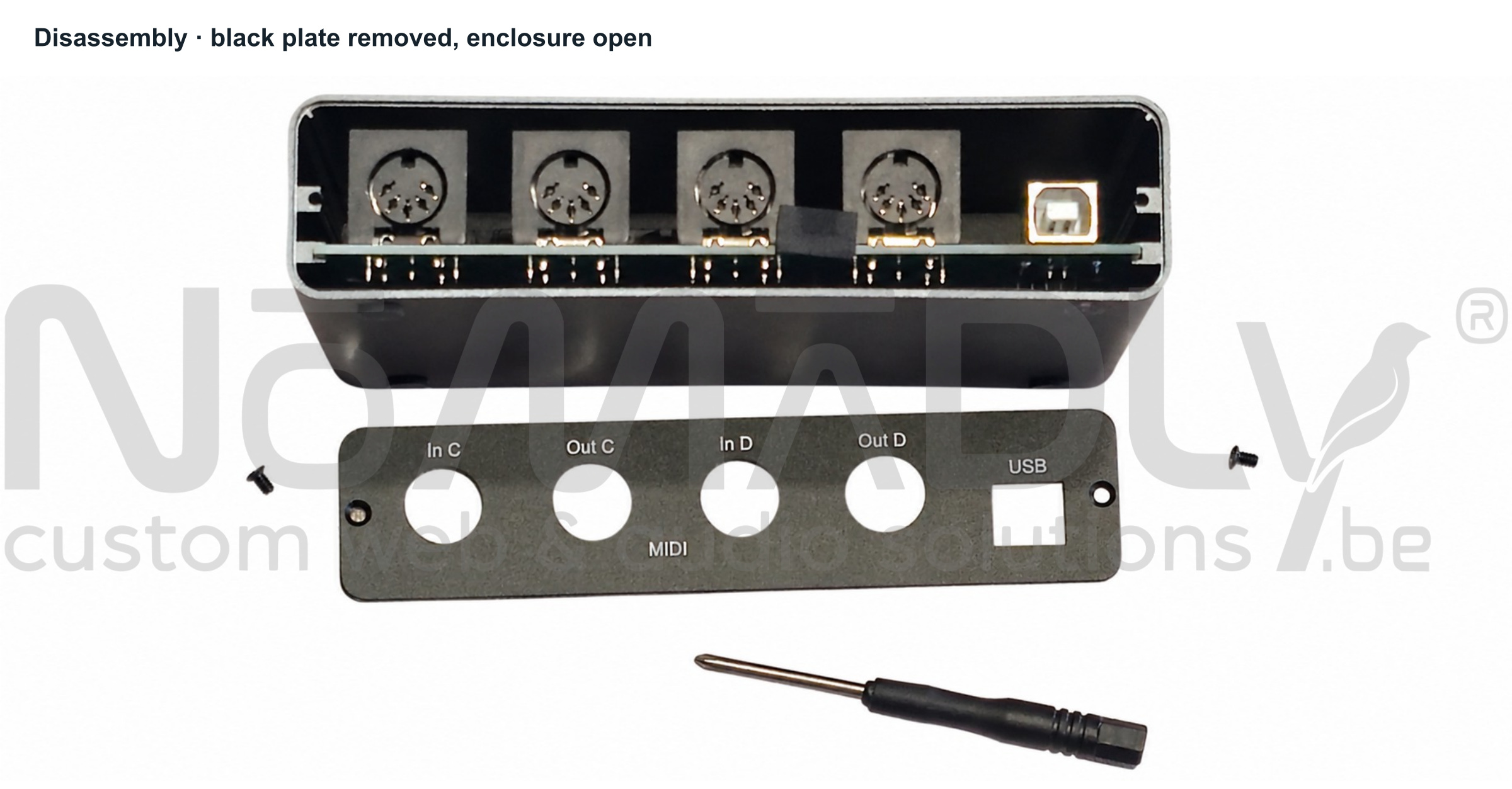
- The two screws and black plate have been removed in this photo.
- The circuit board slides out along the enclosure rails.
How it works & timing
The firmware runs only once in setup(). The loop() function is empty. The N_PUSH_BUTTON constant defines the number of presses: 5 with an external USB power supply, 6 if the Midiface USB port is connected to a computer.
| Phase | Relay / SW1 | NeoPixel | Programmed duration |
|---|---|---|---|
| Startup delay | LOW · released | Red | 8 969 ms |
| Press, repeated N_PUSH_BUTTON times | HIGH · COM/NO closed | Blue | 264 ms per press |
| Release after each press | LOW · COM/NO open | Green | 744 ms per pause |
| Completion indicator | LOW · released | White | 7 546 ms |
| Final idle state | LOW · released | Off; pixel power disabled | Until the next startup |
Timing according to the Midiface connection
| USB connection | Presses | End of press/pause cycles* | NeoPixel off* |
|---|---|---|---|
| External USB power supply · recommended | 5 | 14.009 s | 21.555 s |
| Computer | 6 | 15.017 s | 22.563 s |
Total programmed delays: 8 969 + N_PUSH_BUTTON × (264 + 744) + 7 546. * Excluding QT Py startup and instruction execution time. The durations come from the supplied MidifaceMerger.ino file.
N_PUSH_BUTTON and upload the code again.Wiring diagram
The two COM / NO wires simulate closing the SW1 button contact. They are not connected to the relay logic control circuit. The colours are used as reference markers in this document.
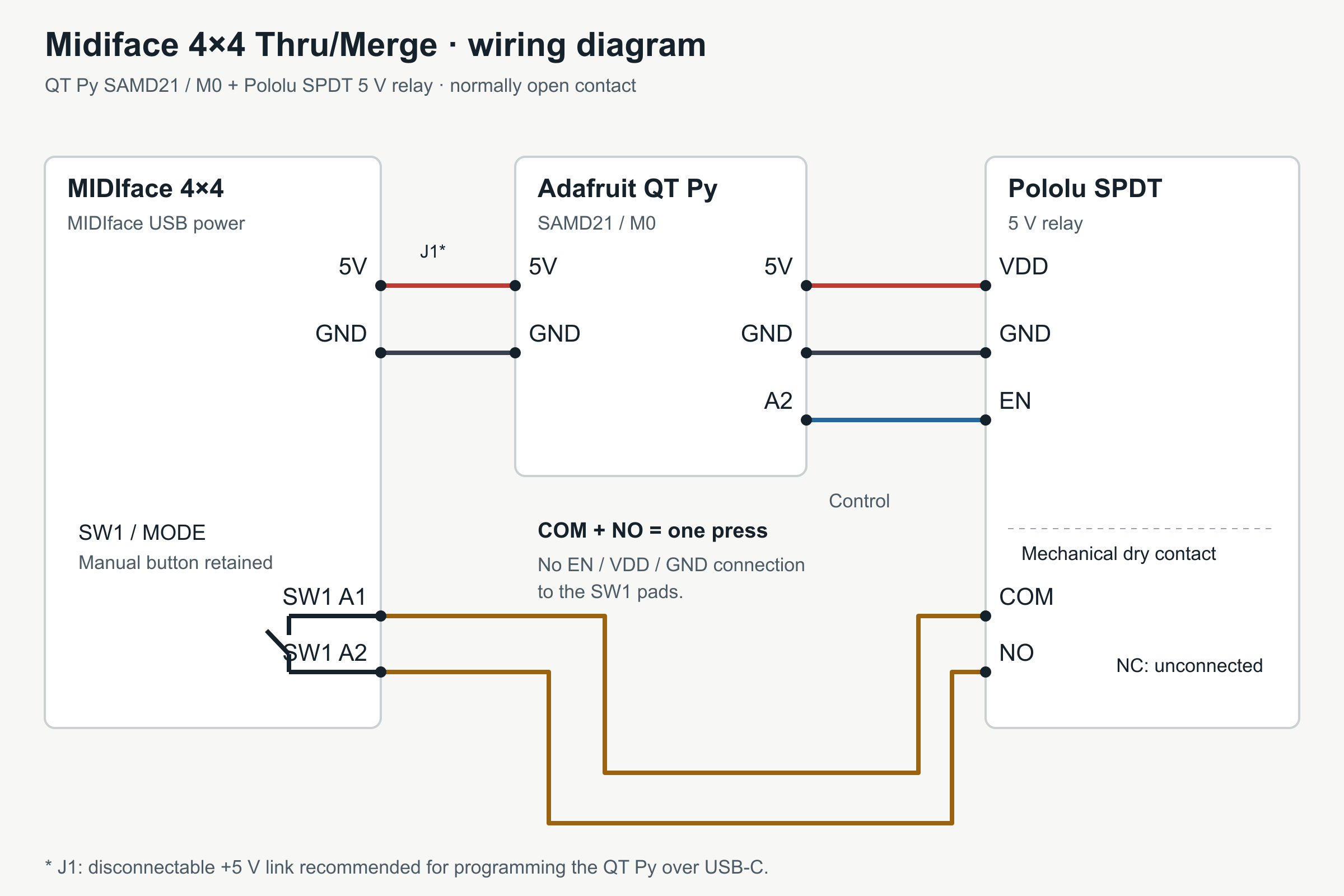
Leave NC unconnected. The relay is released when EN = LOW ; EN = HIGH causes a button press.
Photos & connection points
The photos retain their original orientation. The MIDIface pads and relay terminal order were confirmed by the owner of the build on 18 October 2026.
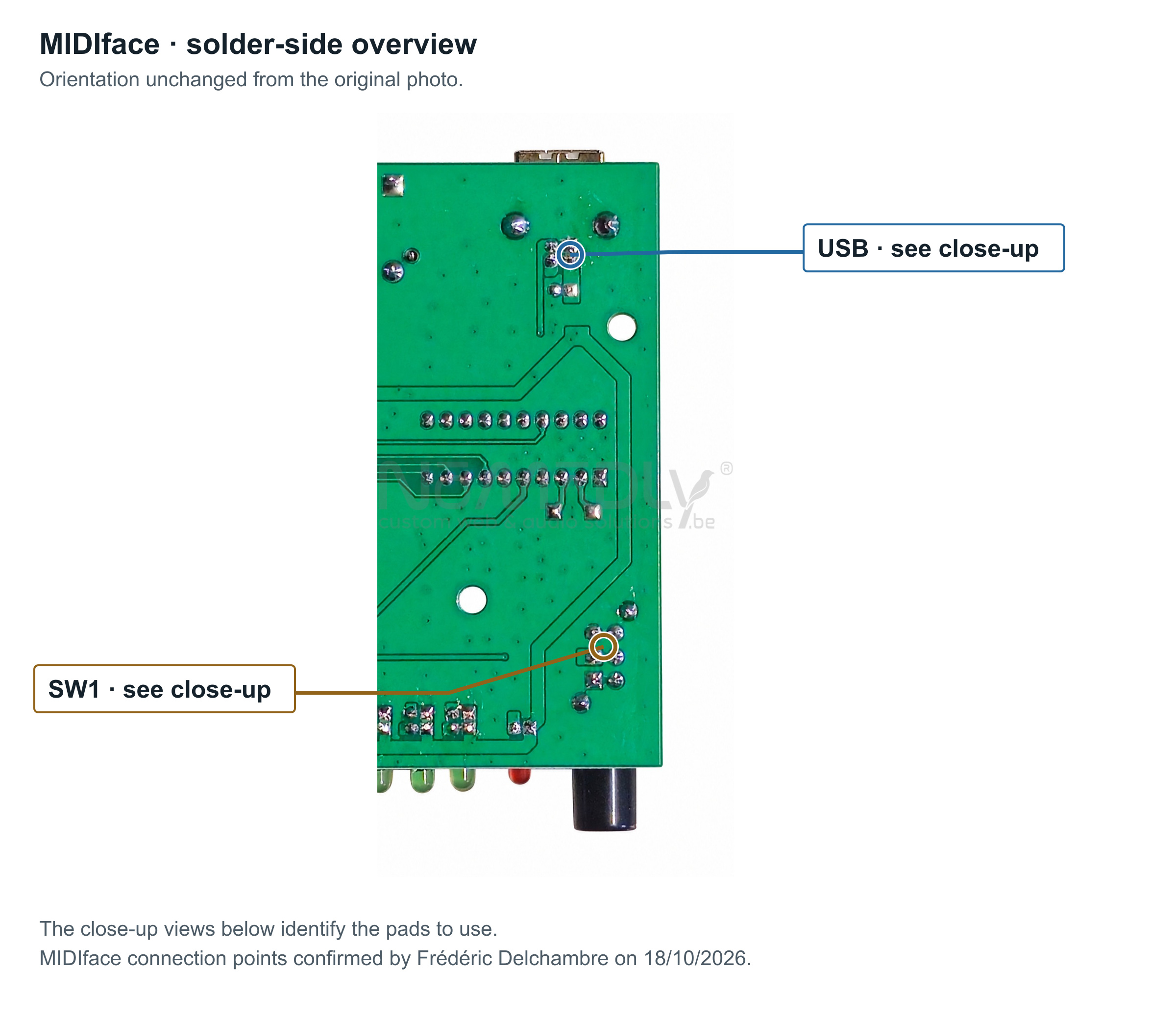
- The close-up views below identify the pads to use.
- MIDIface connection points confirmed by Frédéric Delchambre on 18/10/2026.
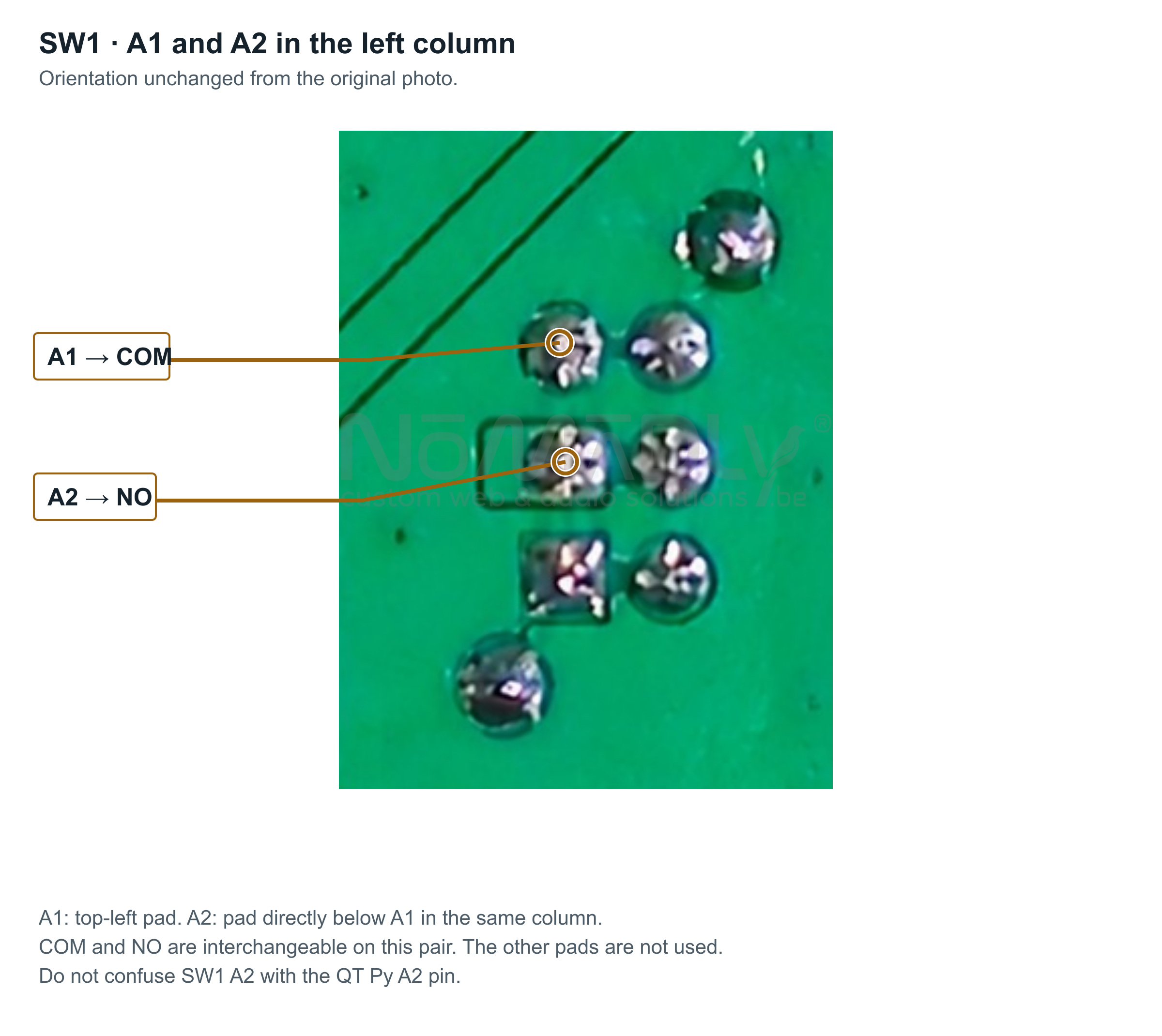
- A1: top-left pad. A2: pad directly below A1 in the same column.
- COM and NO are interchangeable on this pair. The other pads are not used.
- Do not confuse SW1 A2 with the QT Py A2 pin.
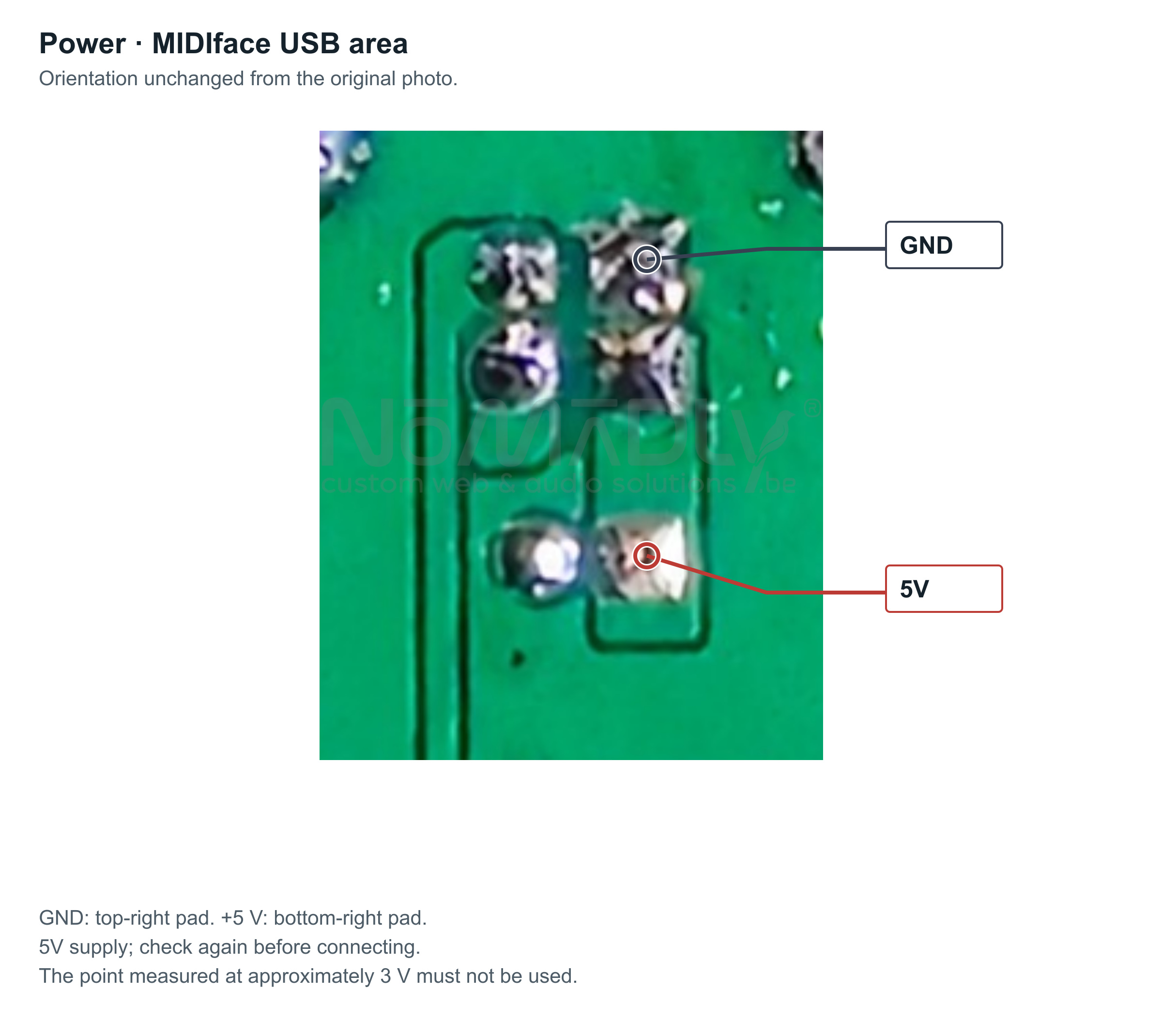
- GND: top-right pad. +5 V: bottom-right pad.
- 5V supply; check again before connecting.
- The point measured at approximately 3 V must not be used.
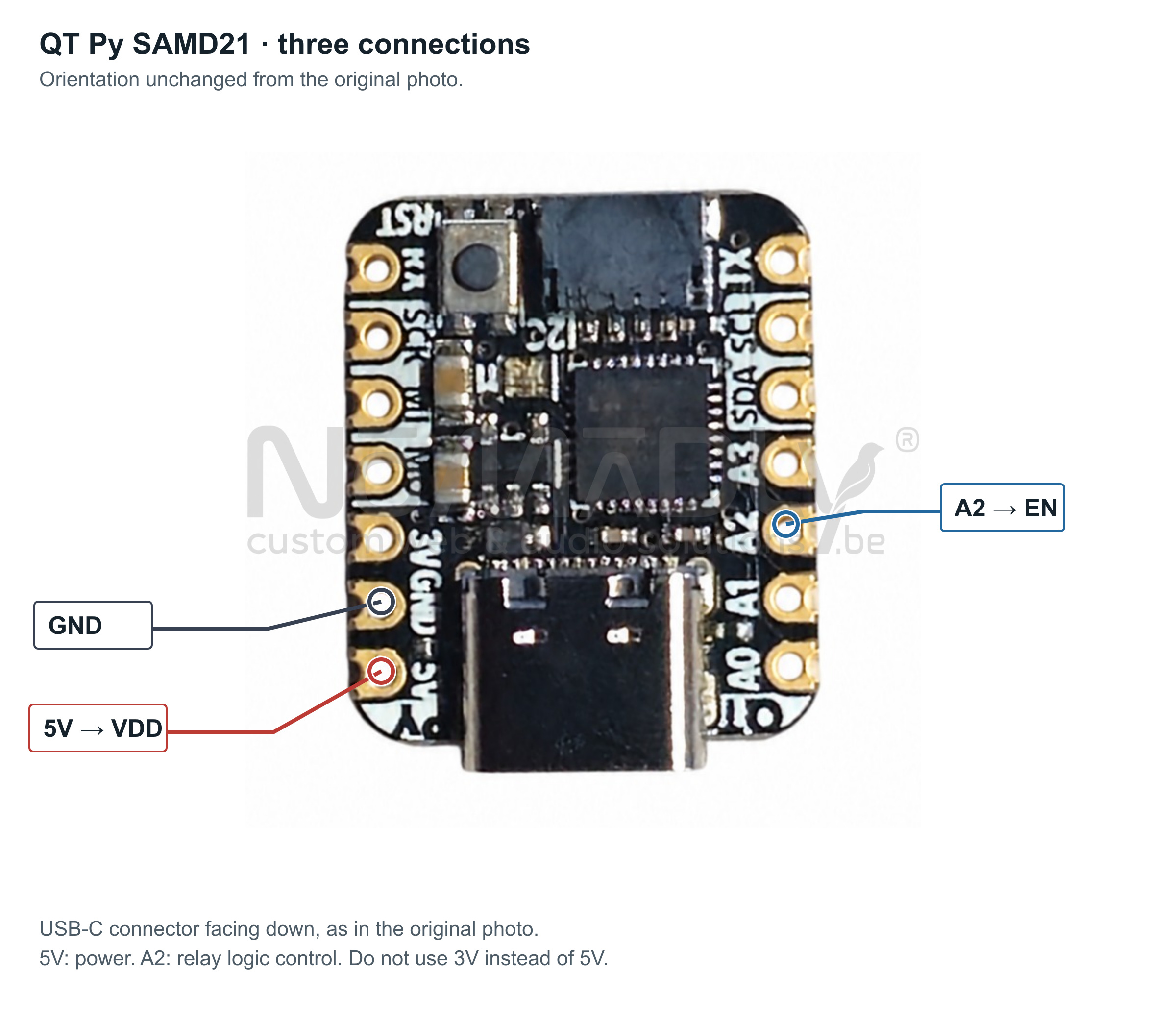
- USB-C connector facing down, as in the original photo.
- 5V: power. A2: relay logic control. Do not use 3V instead of 5V.
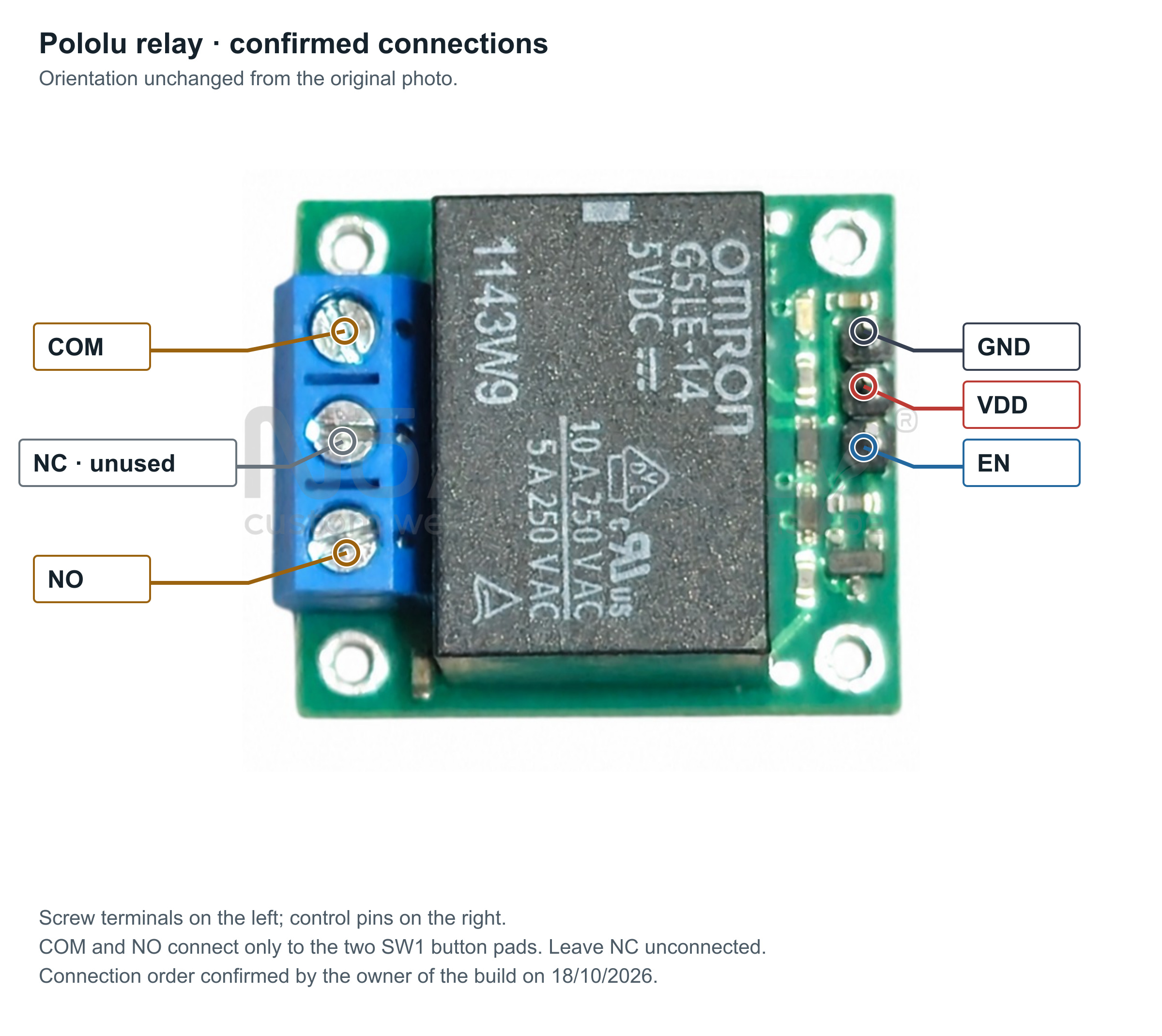
- Screw terminals on the left; control pins on the right.
- COM and NO connect only to the two SW1 button pads. Leave NC unconnected.
- Connection order confirmed by the owner of the build on 18/10/2026.
Wiring
Before soldering anything to the QT Py, program it, then disconnect its USB-C cable.
QT Py ↔ relay
| QT Py | Relay | Function |
|---|---|---|
| 5V | VDD | 5 V relay power supply. |
| GND | GND | Common control ground. |
| A2 | EN | Active-HIGH control. |
Relay ↔ MODE / SW1 button
| Relay | MIDIface | Photo reference |
|---|---|---|
| COM | SW1 A1 | Top-left pad. |
| NO | SW1 A2 | Pad directly below A1, in the same column. |
| NC | Not connected | Middle screw terminal on the relay. |
COM and NO can be swapped on this pair: the dry contact has no polarity.
QT Py A2 controls EN. SW1 A2 is a button pad connected to NO. No wire should directly connect these two points.Power from the MIDIface
| MIDIface | QT Py | Photo reference |
|---|---|---|
| 5V power | 5V | USB area, bottom-right pad. |
| GND | GND | USB area, top-right pad. |
Do not use the point measured at approximately 3 V. The relay is powered from the QT Py 5V and GND pins, never from the A2 output.
Arduino firmware
N_PUSH_BUTTON = 5: default setting, for an external USB power supply for the Midiface.N_PUSH_BUTTON = 6: Midiface USB port connected to a computer.
The file below is a complete copy of the supplied source. Its current setting is N_PUSH_BUTTON = 5 · external USB power supply. The Copy code button and download use exactly this version.
Show full firmware
#include <Adafruit_NeoPixel.h>

/*
QT Py           Relais
5V   ------->   VDD
GND  ------->   GND
A2   ------->   EN

Relais          MidifaceMerger
COM  ------->   A1
NO   ------->   A2

MidifaceMerger  QT Py
5V   ------->   5V
GND  ------->   GND
*/

const int RELAY = A2;
// Adafruit indique que sur ce modèle la broche 12 coupe l’alimentation du NeoPixel
const int PIN_NEOPIXEL_POWER = 12;

// Si boîtier connecté à l'ordinateur : 6 appuis du bouton (il n'y a aucune raison de relier le boîtier au PC en mode Merge)
// Si boîtier non connecté à l'ordinateur, mais uniquement à alimentation usb externe : 5 appuis du bouton
const int N_PUSH_BUTTON = 5;

Adafruit_NeoPixel pixel(1, PIN_NEOPIXEL);

void setLed(int r, int g, int b)
{
  pixel.setPixelColor(0, pixel.Color(r, g, b));
  pixel.show();
}

void setup()
{
  // Init A2/Relais
  pinMode(RELAY, OUTPUT);
  digitalWrite(RELAY, LOW);

  // Init LED
  pixel.begin();
  pixel.setBrightness(30);

  // Démarrage / attente que le MIDIface soit prêt
  setLed(255, 0, 0); // rouge
  delay(8969);

  // 6 appuis sur le bouton MODE
  for (int i = 0; i < N_PUSH_BUTTON; i++)
  {
    // Bouton pressé
    setLed(0, 0, 255); // bleu
    digitalWrite(RELAY, HIGH);
    delay(264);

    // Bouton relâché
    digitalWrite(RELAY, LOW);
    setLed(0, 255, 0); // vert
    delay(744);
  }

  // Terminé
  setLed(255, 255, 255); // blanc
  delay(7546);

  // Sécurité : relais au repos
  digitalWrite(RELAY, LOW);

  // Eteindre complètement la LED NeoPixel
  pixel.clear();
  pixel.show();

  pinMode(PIN_NEOPIXEL_POWER, OUTPUT);
  digitalWrite(PIN_NEOPIXEL_POWER, LOW);
}

void loop()
{
}
The loop uses N_PUSH_BUTTON to count relay activations. The choice between 5 and 6 is made before uploading; the Midiface USB connection is not detected automatically.
RELAY = A2 ; PIN_NEOPIXEL_POWER = 12 is explicitly declared in this firmware. Adafruit documents setting pin 12 LOW to switch off NeoPixel power on the SAMD21/M0.
Compilation and upload must be checked in the Arduino environment used. Keep the core and library versions that work with this file.
Programming the QT Py
The QT Py USB-C connection to a PC is used to program the microcontroller. It does not determine the number of presses: that setting depends on the Midiface USB connection during use.
Perform the first upload with the QT Py on its own, then disconnect its USB-C cable before assembling the build.
- Connect the QT Py on its own to a PC with a USB-C data cable.
- Set up Arduino IDE using the official Adafruit guide : Adafruit SAMD support and the
Adafruit NeoPixellibrary. - Open
MidifaceMerger/MidifaceMerger.ino. Keepconst int N_PUSH_BUTTON = 5;as the default for an external USB power supply for the Midiface. Change it to6only if its USB port will be connected to a computer. Select the Adafruit QT Py M0 (SAMD21) board and the corresponding port; verify, then upload. - Disconnect the QT Py USB-C cable. Perform the power supply checks, then wire and solder the build with all devices powered off.
- Connect the MIDI devices, then power the Midiface through its USB port using the chosen source: external USB power for the default 5 presses, or a computer for 6 presses.
- Check the complete sequence using the test procedure.
Provide an easily disconnectable +5 V connection inside the enclosure for future reprogramming.
Test procedure
Check the power supply before connecting the build, then test the actual assembly before closing the enclosure.
Measure 5 V before connecting the QT Py
- With the Midiface powered off, identify the 5V and GND points shown in the photo. Keep the QT Py disconnected.
- Power the Midiface through its USB port and use a multimeter in DC voltage mode to measure the voltage and polarity between these two points.
- Disconnect Midiface power and wait for it to switch off before soldering and connecting the QT Py.
Wiring checks with power off
- Check the solder joints, absence of solder bridges and board insulation.
- Check that COM/NO is open at rest, NC is unconnected and only the two selected SW1 contacts are wired.
- Check that no USB-C cable connects the QT Py to a PC.
- Check that the Midiface USB connection matches the programmed number of presses: 5 with an external USB power supply, 6 with a computer.
For each test from a complete startup
- Switch off MIDIface power; wait for it to turn off completely before powering it on again.
- Observe red for approximately 9 s, then count 5 activations with an external USB power supply, or 6 if the Midiface is connected to a computer, with alternating blue/green indications. The observed number must match
N_PUSH_BUTTON. - Check that the mode indicator shows MERGE by referring to the Midiface manual.
- Observe white for approximately 7.5 s, then the NeoPixel switching off. The relay must remain released.
- Leave the device powered on for at least one minute: no further button presses should occur.
- Test MIDI data transmission using the connections described in the Midiface manual, then check that the manual button still works.
- Repeat several complete cycles; record any missed press and the resulting mode.
If the result is different
| Observation | Useful check |
|---|---|
| No mode change | Check the SW1 A1/A2 pair, the use of COM/NO and contact closure during each press. |
| Incorrect number of presses or wrong mode | Start again from a complete power-off; check the Midiface USB connection and N_PUSH_BUTTON setting: 5 with external USB power, 6 with a computer. |
| Restarts or irregular operation | Measure the supply under load and check grounds, solder joints and mounting. |
| NeoPixel stays on | Check the exact QT Py SAMD21/M0 model, the uploaded firmware and execution of the end of setup(). |
Final assembly & precautions
- Secure the QT Py and relay so they cannot touch the MIDIface PCB or any conductive parts of the enclosure.
- Insulate exposed solder joints and terminals; secure the wires without putting strain on the pads.
- Keep the MODE button and disconnectable +5 V connection accessible.
- Label the wires at both ends; clearly distinguish QT Py A2 and SW1 A2.
- Check the voltage and correct operation during relay activations before closing the enclosure.
- Work on and change the wiring with power off. Do not accidentally leave NC connected.
Keep this page, the SVG diagram, annotated photos and .ino file with the device. After testing, record the Arduino/core/library versions used and any hardware differences.
Sources & traceability
- Project brief and photos; measurements and connection points confirmed by Frédéric Delchambre on 18/10/2026.
MidifaceMerger.ino: source code by Frédéric Delchambre, dated 18/10/2026, defining the delays and relay control sequence.- Number of presses according to the USB connection: clarification from Frédéric Delchambre on 20/10/2026 (5 with external USB power, 6 with a computer).
- Adafruit · QT Py SAMD21: pins, power, NeoPixel.
- Adafruit · Arduino IDE setup.
3D printed support
The support helps fit the QT Py and relay inside the Midiface 4×4 Thru/Merge enclosure. Its STL file is available below for 3D printing.
Support view
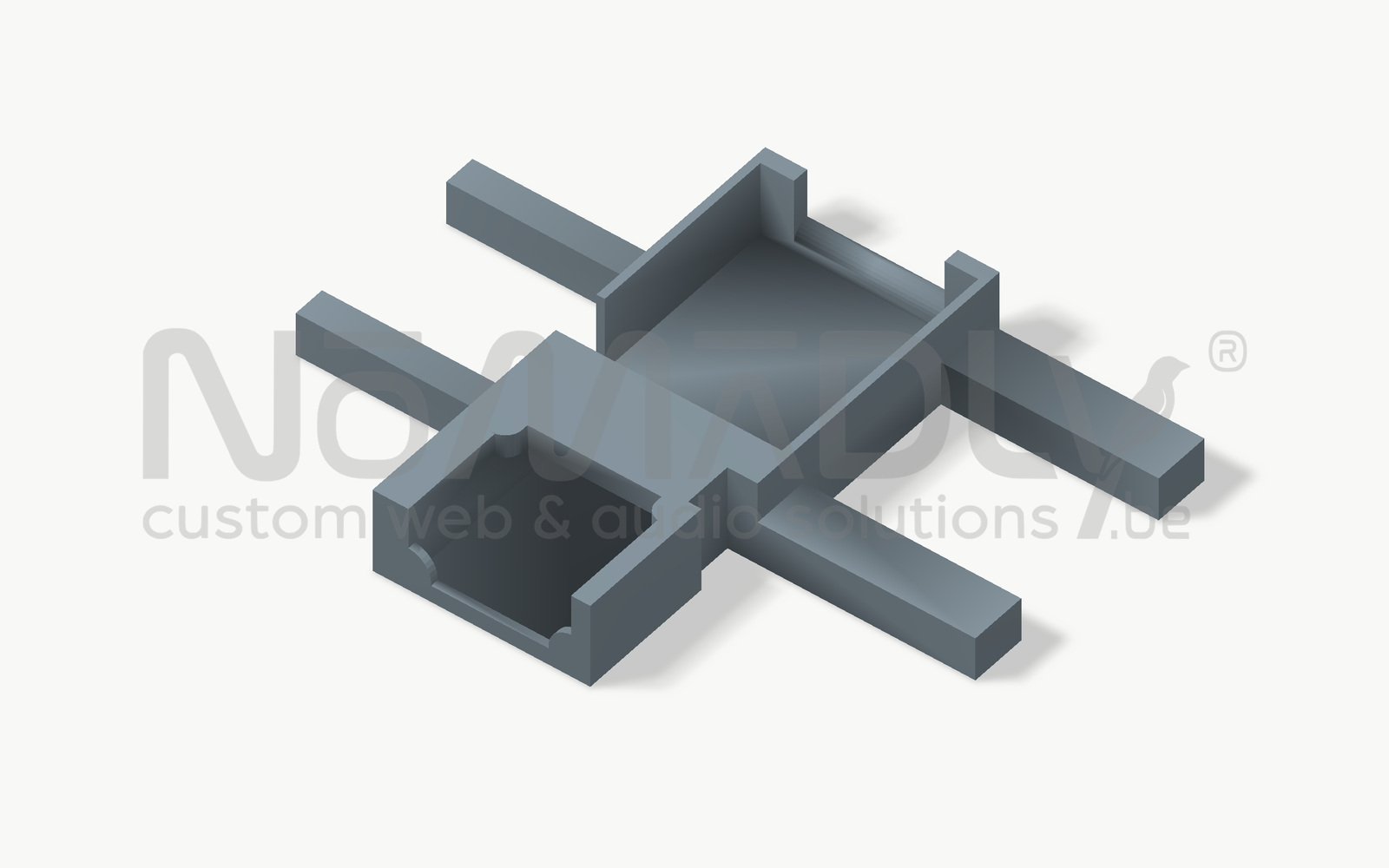
- Render generated from the supplied STL file. The material and colour are illustrative.
360° rotation
Assembly on the Midiface board
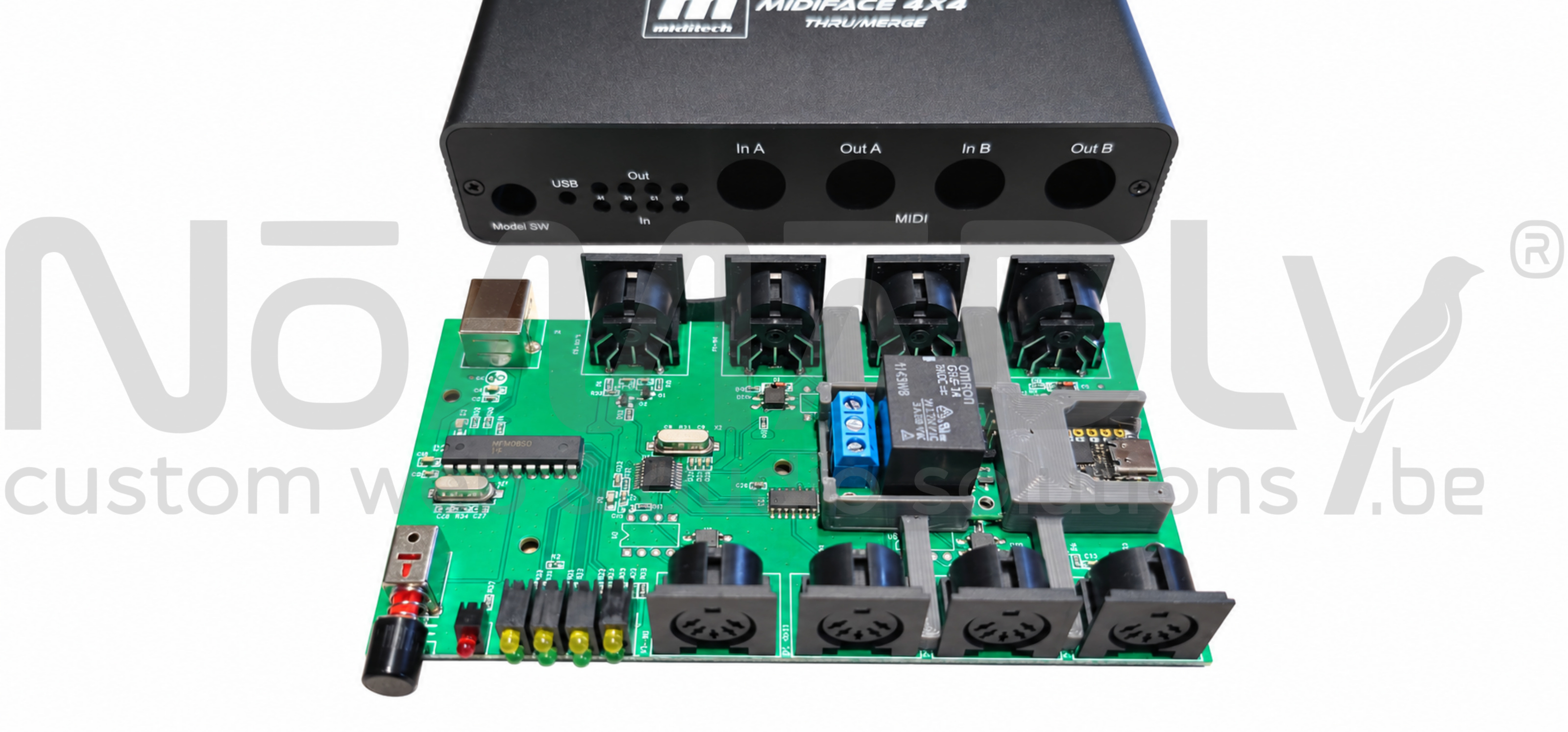
- Actual mechanical integration of the support on the board, removed from its enclosure.
Liability and trademarks
This tutorial is shared free of charge by Frédéric Delchambre/Nomadly SRL as an account of their own build, with no guarantee of results. Anyone choosing to reproduce it must check the compatibility of their hardware and remains responsible for their own actions. These provisions apply within the limits set by law.
It presents an independent, experimental modification; it is not an official manufacturer procedure.
Modifications and risks
Each person chooses to carry out this modification at their own risk and remains responsible for their checks, choice of hardware and actions. They must have the necessary skills and check their device's compatibility before starting any work.
Opening the enclosure, soldering and electrical modifications can damage the MIDIface or connected equipment, cause malfunctions, data loss or injury. They may also affect the manufacturer's warranty or eligibility for support or repair.
To the extent permitted by applicable law, Frédéric Delchambre and Nomadly SRL guarantee neither the outcome of this modification nor its suitability for another device or a particular use. They disclaim liability for property damage, data loss and repair or replacement costs attributable to wiring errors, inappropriate handling, incompatible components or failure by the person carrying out the modification to follow the safety instructions.
Trademarks and third-party rights
The trademarks, product names and logos mentioned or shown, including Miditech, MIDIface, Adafruit, QT Py, Pololu and Arduino, belong to their respective owners. They are mentioned solely to identify the hardware and tools used. No affiliation, endorsement, certification or warranty by these owners is claimed in relation to this tutorial or build.
This tutorial transfers no intellectual property rights belonging to third parties. The rights of trademark owners and other rights holders remain applicable.
Nomadly SRL legal information and contact details on the home page.